What is Cline AI?
Cline AI is an open-source Visual Studio Code extension that pairs large language models with an “interpreter” workflow. It can read your workspace, draft code edits, run tasks in the integrated terminal, and ask for confirmation before applying changes. When paired with AGCloud models, it gives you a secure copilot that stays inside your local editor.Features
Explain Code
Highlight a file or snippet and run
Cline: Explain Selection to receive a structured explanation with follow-up questions.Implement Tasks
Create a TODO comment or describe a feature in the Command Palette. Cline plans steps, drafts edits, and asks before applying patches.
Run Tests
Ask Cline to execute your existing test scripts. It streams terminal output back into the conversation for quick debugging loops.
Document Changes
Generate changelog entries, commit messages, or inline documentation after a session to keep reviewers in the loop.
Prerequisites
- Visual Studio Code 1.85 or later
- Node.js 18+ (required for the Cline CLI helper)
- An AGCloud account with an active API key
- Internet access from Visual Studio Code to reach AGCloud endpoints
Step 1: Install the Cline Extension
- Open Visual Studio Code.
- Press
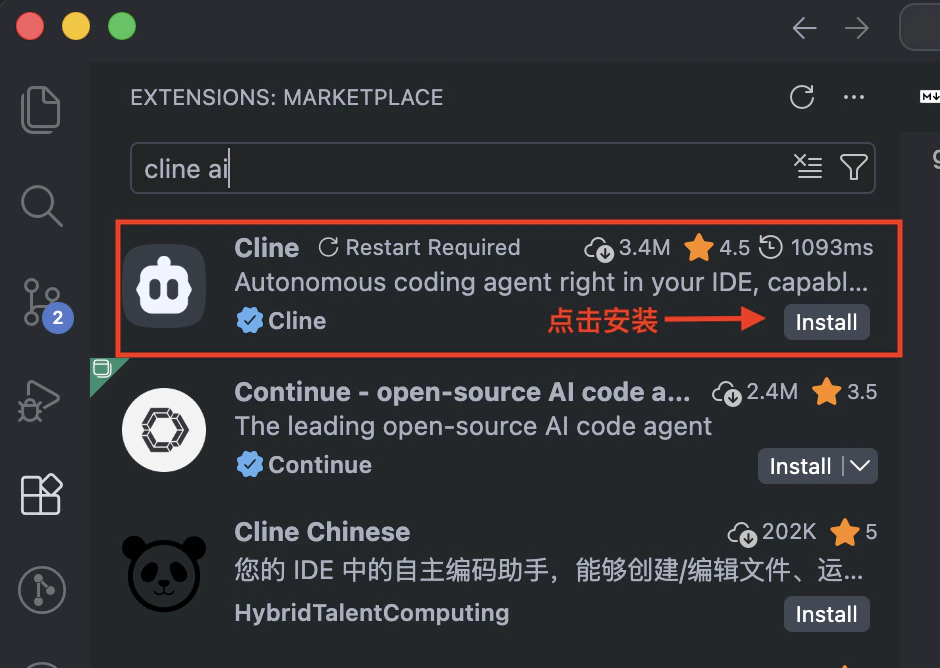
Ctrl+Shift+X(Cmd+Shift+Xon macOS) to open the Extensions view. - Search for “Cline AI” and install the extension published by
cline. - Reload Visual Studio Code if prompted.
Step 2: Initialize Cline in a Workspace
- Open the project folder you want Cline to assist with.
- Launch the Command Palette (
Ctrl+Shift+P/Cmd+Shift+P) and selectCline: Initialize. - Select
OpenAI CompatibleAPI Provider. - Input
https://aiandgpu.com/v1to Base URL. - Paste your API Key where generated in AGCloud Dashboard.
- Input
Model IDyou want to use. See all models inhttps://aiandgpu.com/v1/models
Need additional models? Browse the catalog at https://aiandgpu.com/v1/models and update the
model field accordingly.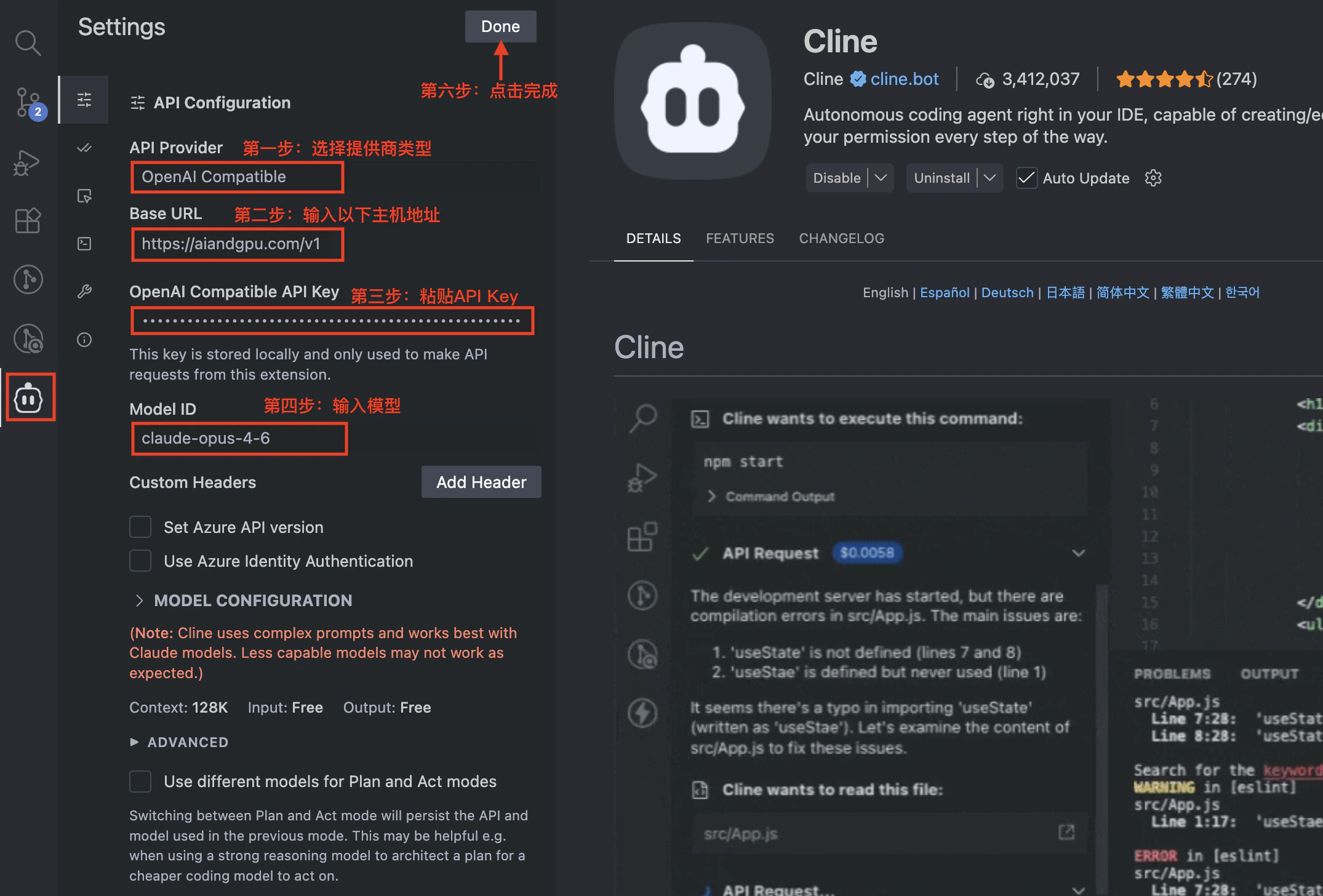
Step 3: Start Chat
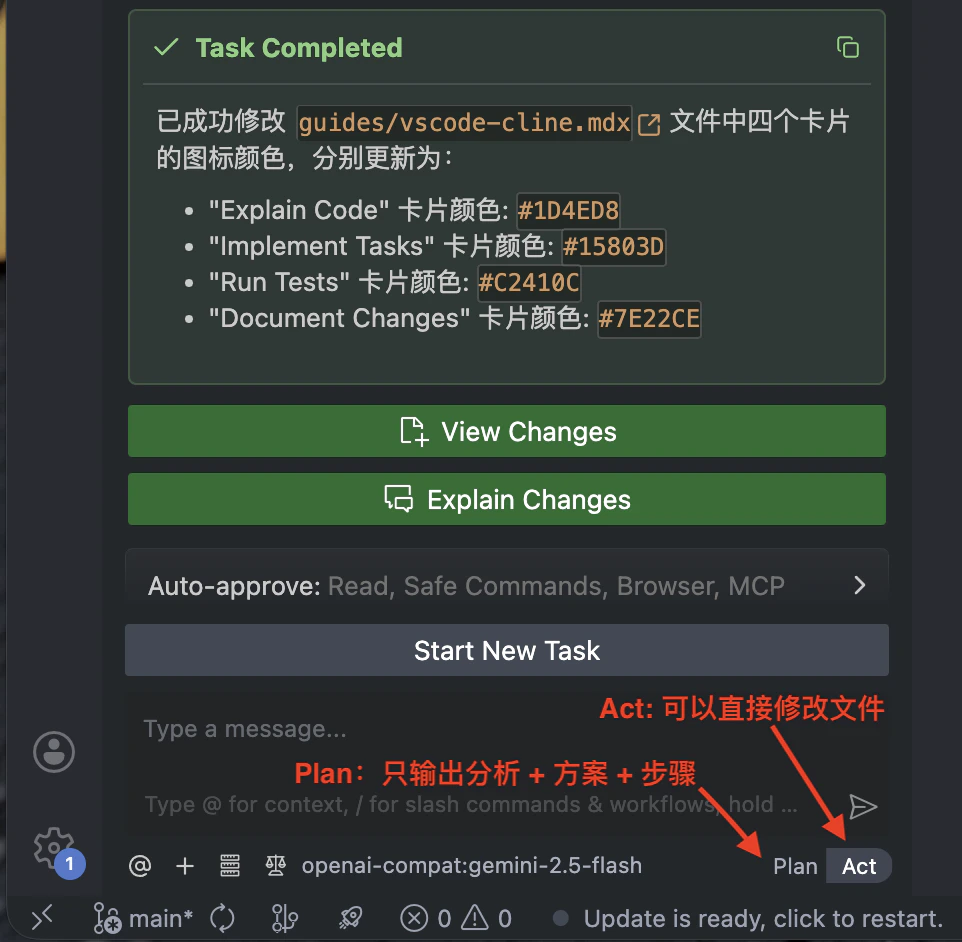
- Plan mode: Only inputting the analysis and solution, along with the specific implementation steps, is allowed; it cannot help you modify the files.
- Act mode(Recommended): It can directly help you create, modify, delete files, execute terminal command like
npm installetc.