
What is Chatbox AI
Chatbox AI is a cross-platform desktop client that connects your AGCloud account and personal API keys to a unified interface. Conversations, history, and generated assets live on your device, while quick switches between GPT, Claude, Gemini, and other providers keep your workflow fluid.Features
Chat with Documents & Images
Upload PDFs, slides, screenshots, or snippets and Chatbox extracts the context to answer follow-up questions instantly.
Code Magic: Generate & Preview
Generate runnable snippets, review diffs, and preview UI ideas without leaving your workspace.
Real-Time Web Search & Browsing
Trigger live search when you need up-to-date facts or references and keep citations collected in one place.
Visualized Insights with AI Charts
Turn raw tables or prompts into clean charts so stakeholders grasp trends at a glance.
AI-Powered Image Creation
Produce illustrations, UI mockups, and marketing assets using built-in image generation models.
LaTeX & Markdown Rendering
Render equations and formatted documents inline to simplify collaboration with researchers and engineers.
Step 1: Installation
- Download the latest desktop release for macOS, Windows, or Linux from https://chatboxai.app.
- Install the application following your OS prompt, then launch Chatbox AI and sign in with your AGCloud credentials.
- (Optional) Open Settings → General to set the default download folder for transcripts and assets before you start chatting.
Step 2: Add AGCloud Configuration
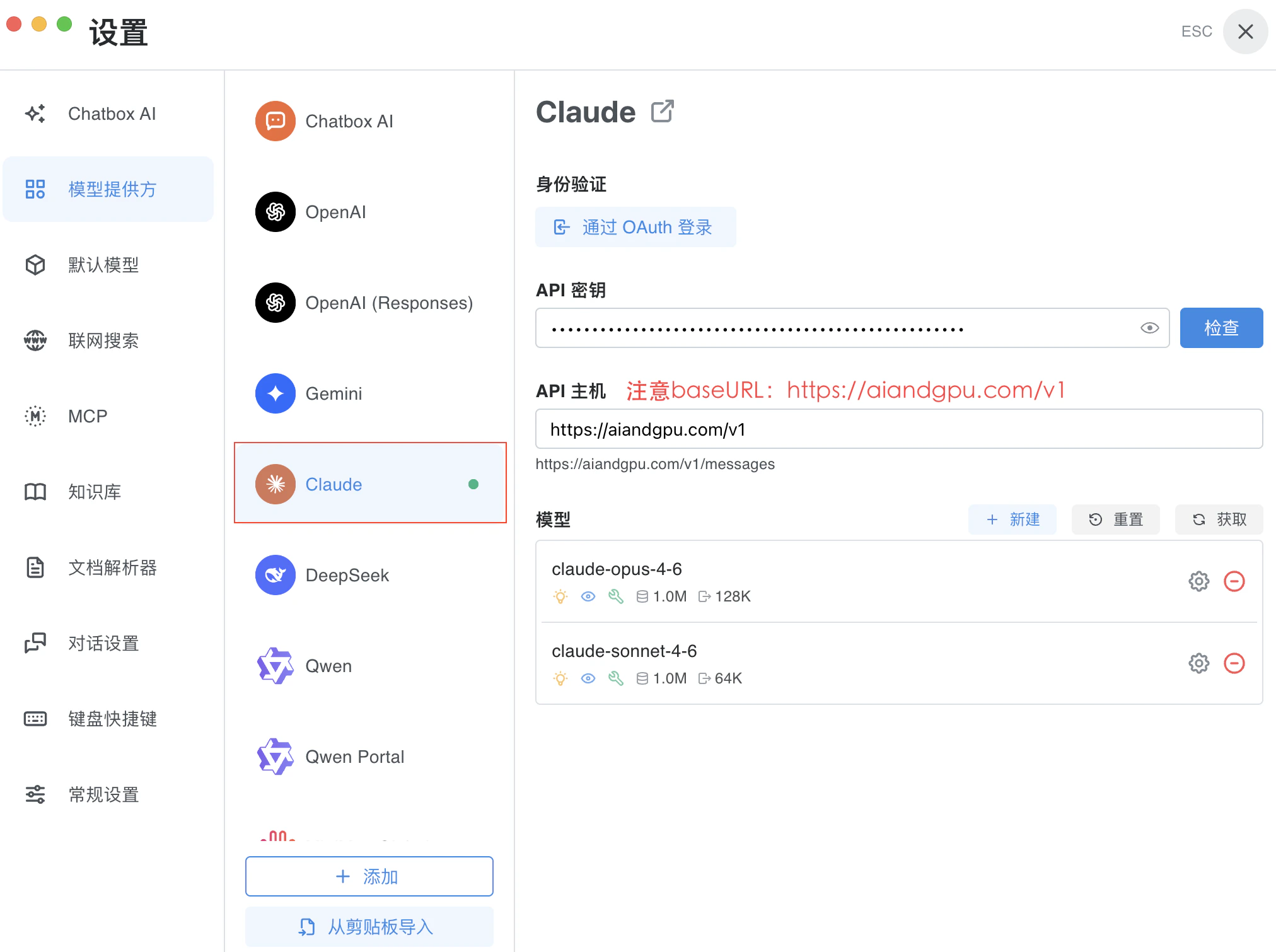
Some Claude models are not fully compatible with the OpenAI-format endpoints, which can cause slow or stalled responses. When connecting to Claude, switch to the dedicatedAnthropic provider so the correct API schema is used.
2.1 Configure OpenAI and Google Providers
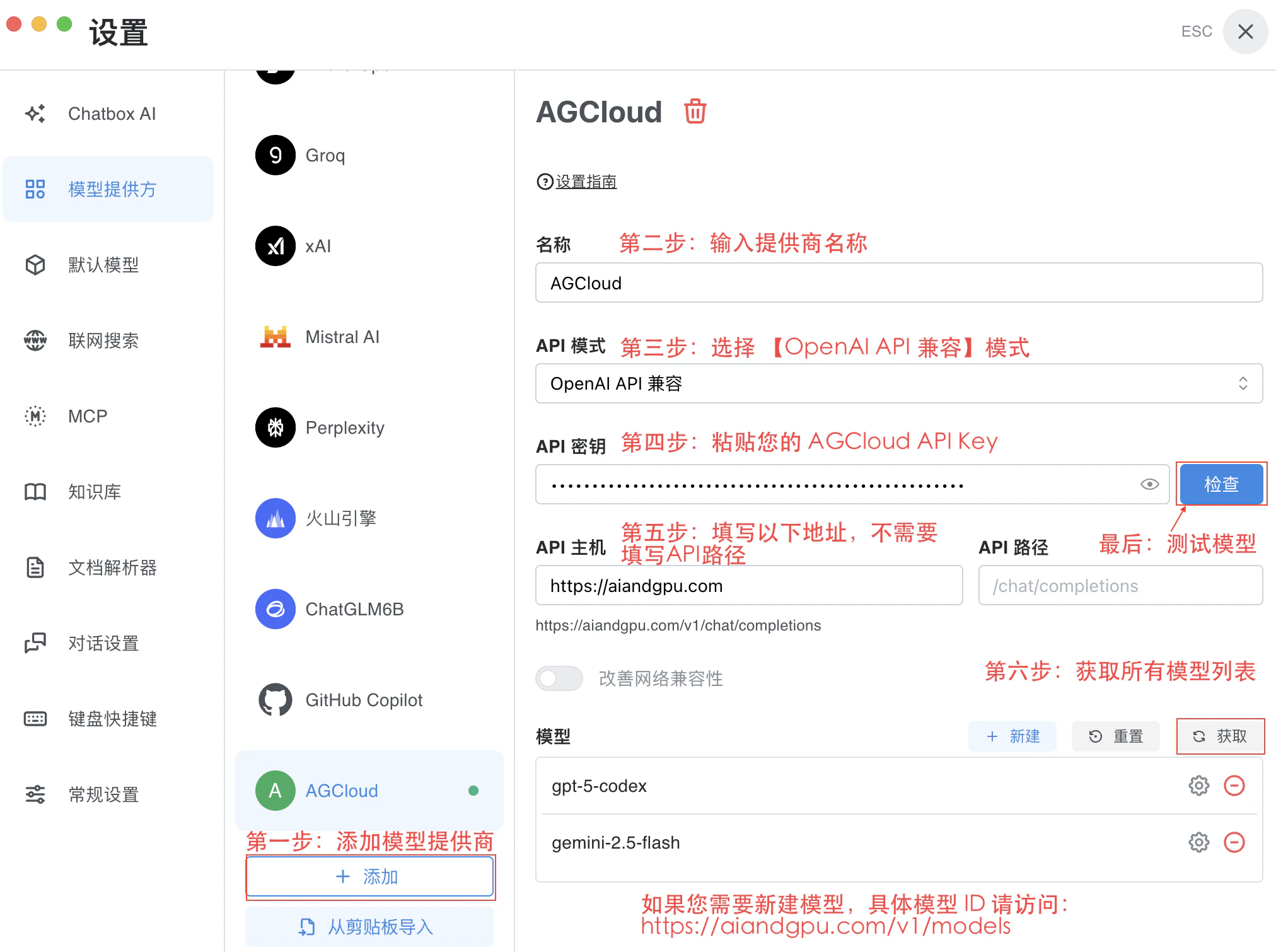
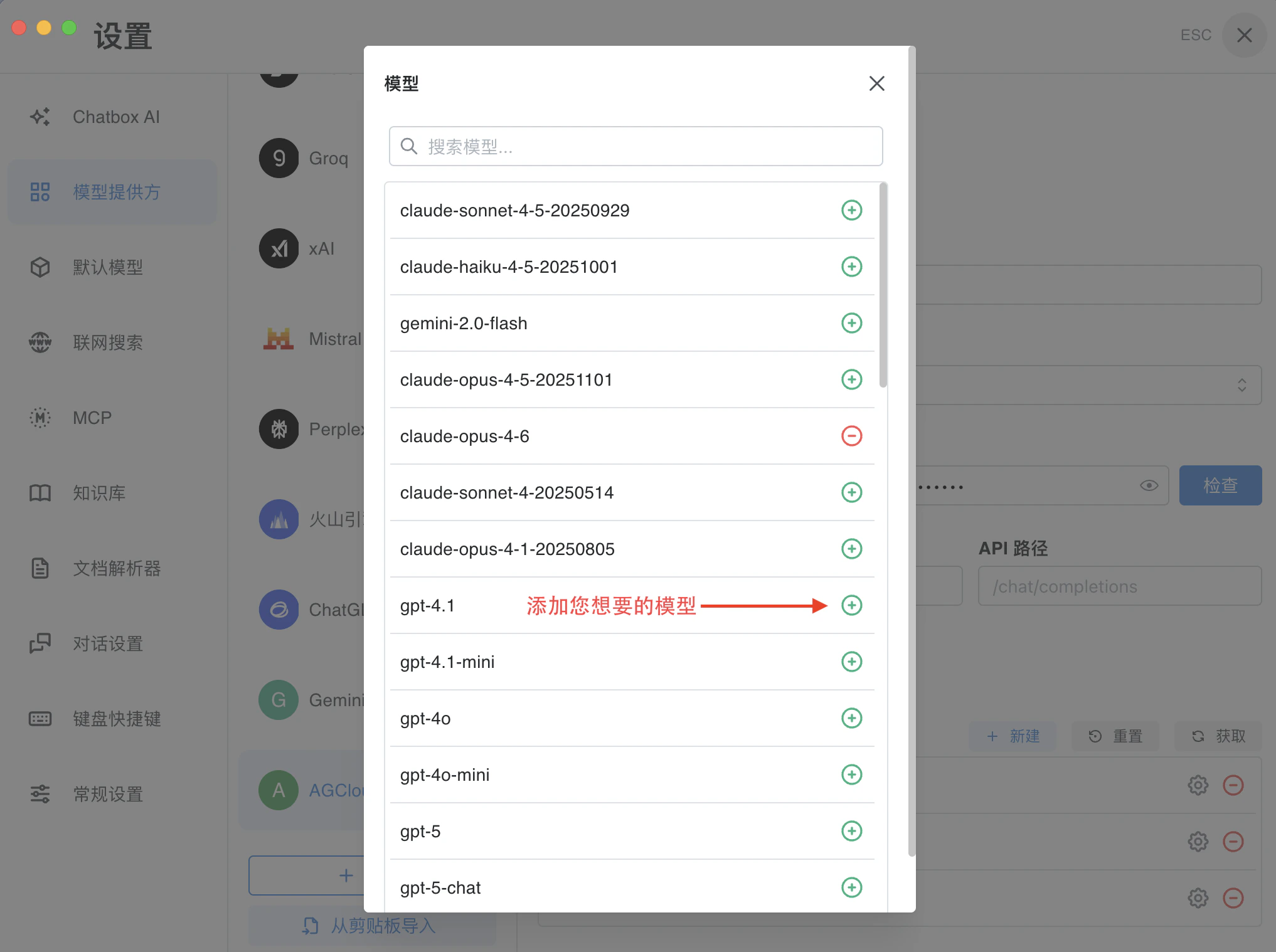
- Repeat the first bullet from 2.1 to open Settings → Providers and choose
Anthropic. - Replace the API Host with
https://aiandgpu.com/v1so requests are routed through AGCloud.
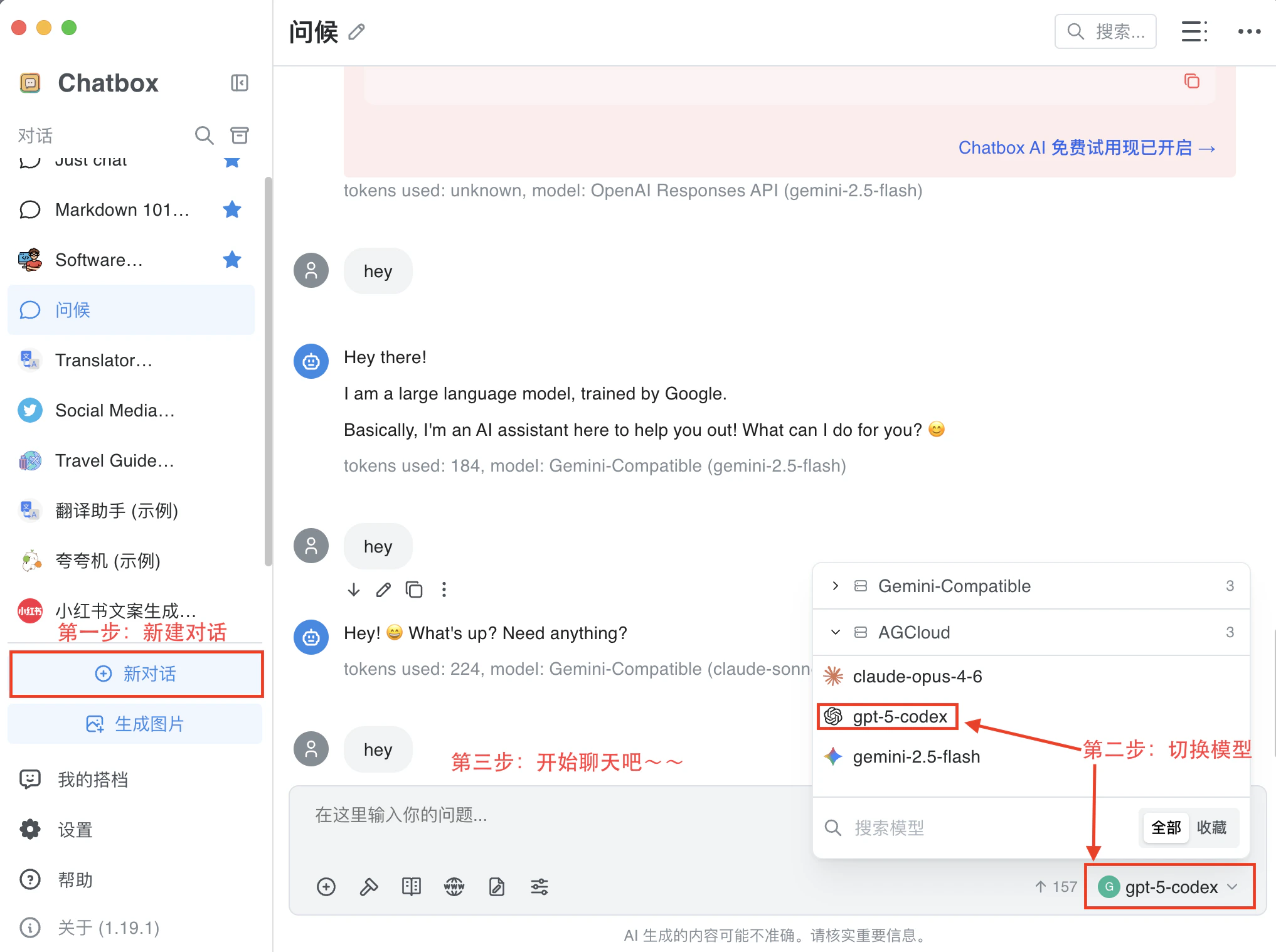
Step 3: Start Chat
- Choose a model from the top selector or the command palette shortcut
⌘/Ctrl + K. - Drag documents or images into the message box to enable context-aware answers.
- Use the sidebar history to pin important conversations so they sync across devices.
Step 4: Manage Data
- Export transcripts via the ⋯ menu in each conversation; choose JSON or Markdown for downstream tools.
- Toggle Local Cache Only in Settings → Privacy if you need to keep all assets on-device.
- Set up scheduled backups by linking a folder to cloud storage (iCloud, OneDrive, etc.) so your prompts and attachments remain safe.