> ## Documentation Index
> Fetch the complete documentation index at: https://docs.aiandgpu.com/llms.txt
> Use this file to discover all available pages before exploring further.
# VS Code - Cline AI
> Set up the Cline AI coding assistant in Visual Studio Code with AGCloud models.
## What is Cline AI?
Cline AI is an open-source Visual Studio Code extension that pairs large language models with an “interpreter” workflow. It can read your workspace, draft code edits, run tasks in the integrated terminal, and ask for confirmation before applying changes. When paired with AGCloud models, it gives you a secure copilot that stays inside your local editor.
## Features
Highlight a file or snippet and run `Cline: Explain Selection` to receive a structured explanation with follow-up questions.
Create a TODO comment or describe a feature in the Command Palette. Cline plans steps, drafts edits, and asks before applying patches.
Ask Cline to execute your existing test scripts. It streams terminal output back into the conversation for quick debugging loops.
Generate changelog entries, commit messages, or inline documentation after a session to keep reviewers in the loop.
## Prerequisites
* Visual Studio Code 1.85 or later
* Node.js 18+ (required for the Cline CLI helper)
* An [**AGCloud**](https://developer.aiandgpu.com/) account with an active API key
* Internet access from Visual Studio Code to reach AGCloud endpoints
## Step 1: Install the Cline Extension
1. Open Visual Studio Code.
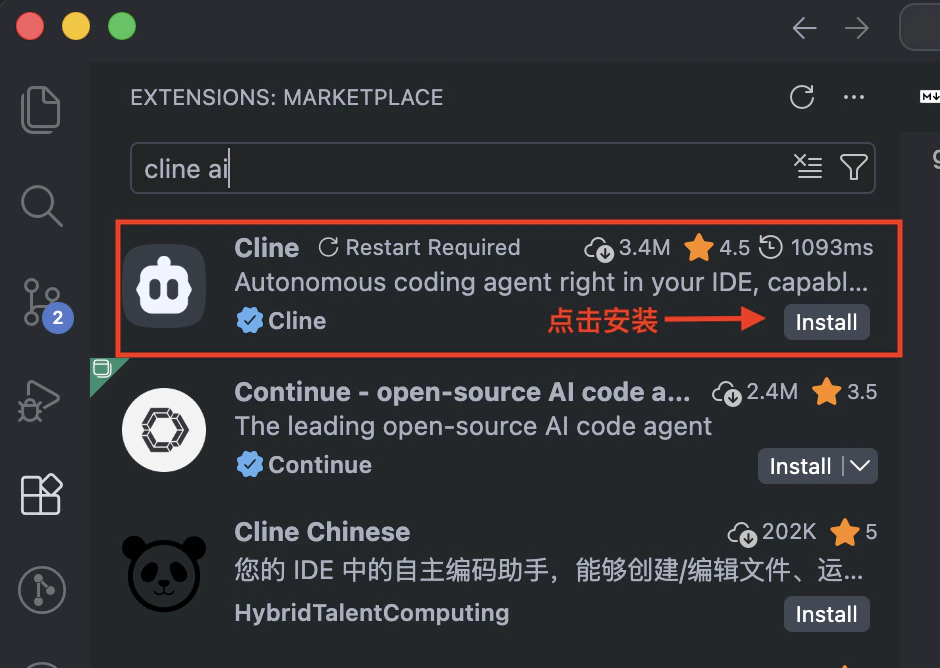
2. Press `Ctrl+Shift+X` (`Cmd+Shift+X` on macOS) to open the Extensions view.
3. Search for **“Cline AI”** and install the extension published by `cline`.
4. Reload Visual Studio Code if prompted.
 ## Step 2: Initialize Cline in a Workspace
1. Open the project folder you want Cline to assist with.
2. Launch the Command Palette (`Ctrl+Shift+P` / `Cmd+Shift+P`) and select `Cline: Initialize`.
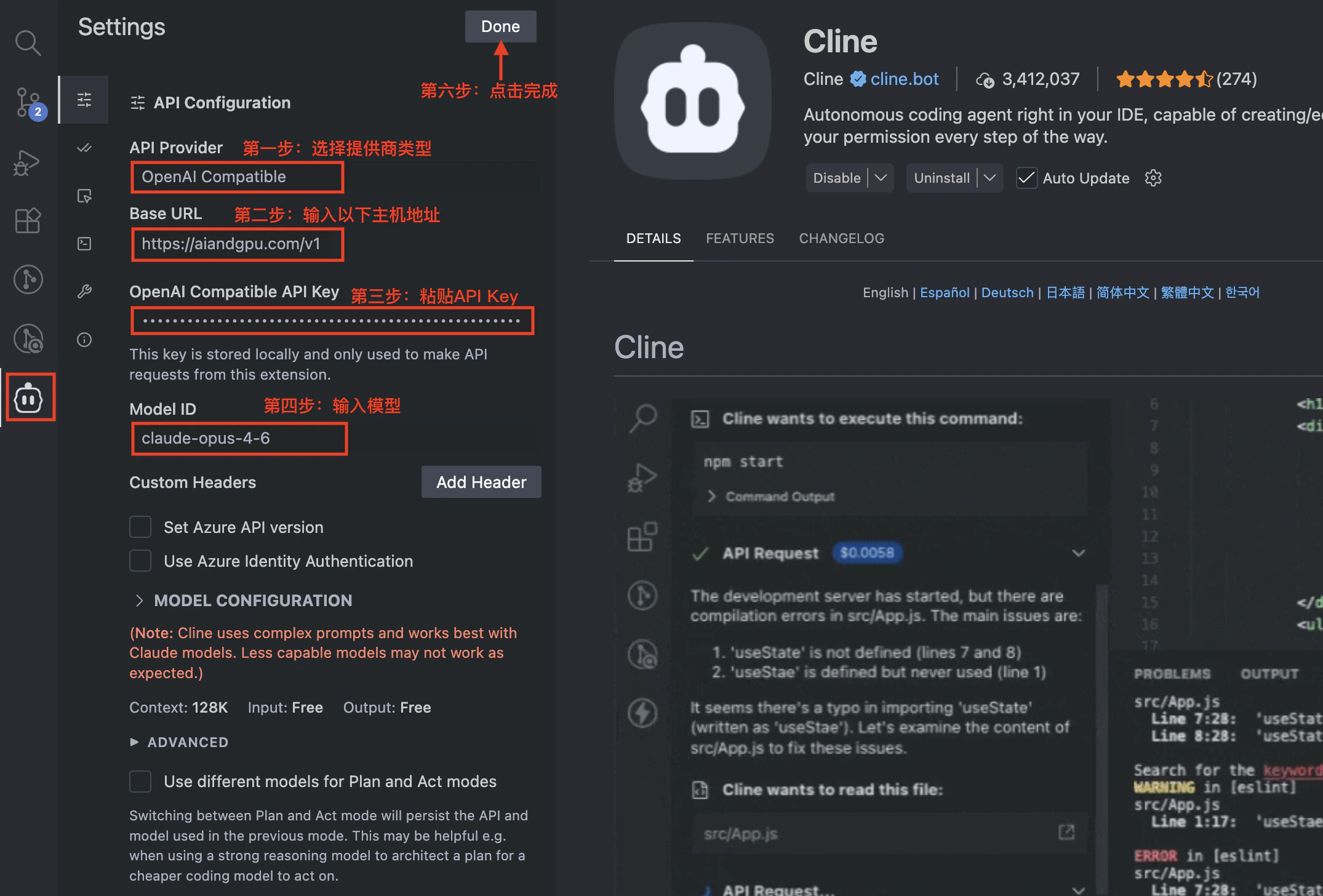
3. Select `OpenAI Compatible` API Provider.
4. Input `https://aiandgpu.com/v1` to Base URL.
5. Paste your **API Key** where generated in [**AGCloud Dashboard**](https://developer.aiandgpu.com).
6. Input `Model ID` you want to use. See all models in `https://aiandgpu.com/v1/models`
Need additional models? Browse the catalog at [https://aiandgpu.com/v1/models](https://aiandgpu.com/v1/models) and update the `model` field accordingly.
## Step 2: Initialize Cline in a Workspace
1. Open the project folder you want Cline to assist with.
2. Launch the Command Palette (`Ctrl+Shift+P` / `Cmd+Shift+P`) and select `Cline: Initialize`.
3. Select `OpenAI Compatible` API Provider.
4. Input `https://aiandgpu.com/v1` to Base URL.
5. Paste your **API Key** where generated in [**AGCloud Dashboard**](https://developer.aiandgpu.com).
6. Input `Model ID` you want to use. See all models in `https://aiandgpu.com/v1/models`
Need additional models? Browse the catalog at [https://aiandgpu.com/v1/models](https://aiandgpu.com/v1/models) and update the `model` field accordingly.
 ## Step 3: Start Chat
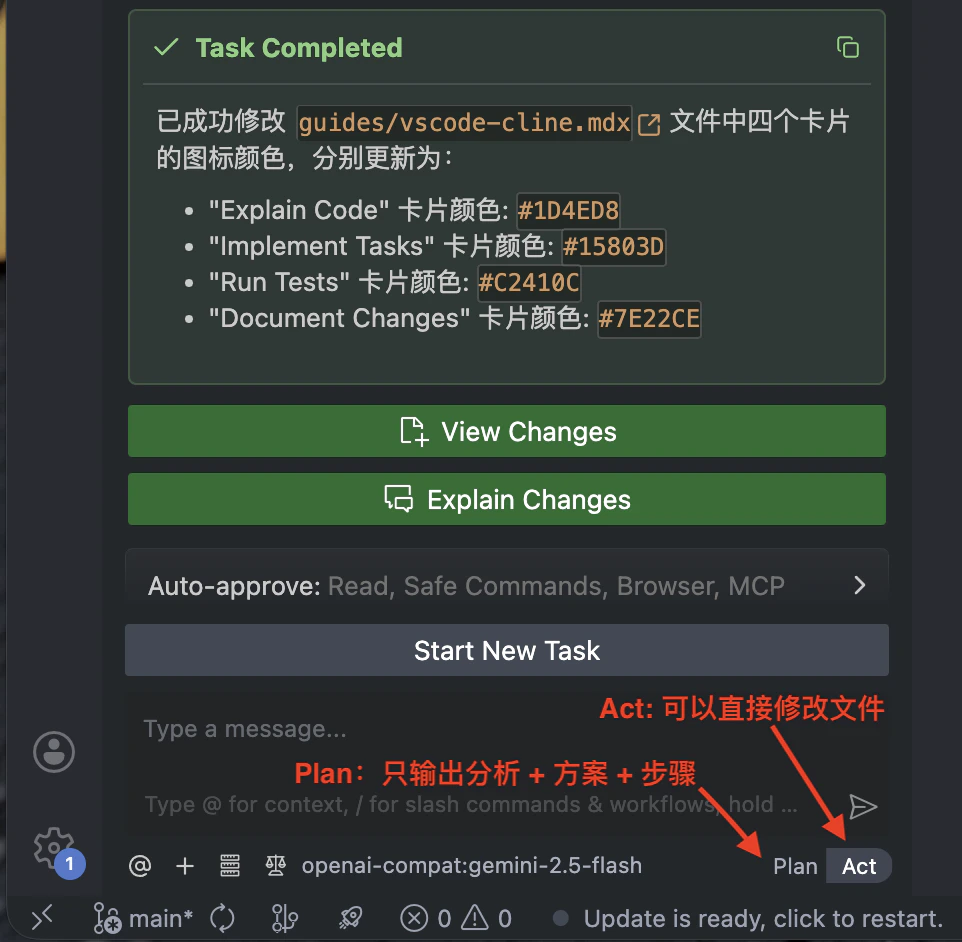
1. **Plan** mode: Only inputting the analysis and solution, along with the specific implementation steps, is allowed; it cannot help you modify the files.
2. **Act** mode(**Recommended**): It can directly help you create, modify, delete files, execute terminal command like `npm install` etc.
## Step 3: Start Chat
1. **Plan** mode: Only inputting the analysis and solution, along with the specific implementation steps, is allowed; it cannot help you modify the files.
2. **Act** mode(**Recommended**): It can directly help you create, modify, delete files, execute terminal command like `npm install` etc.