> ## Documentation Index
> Fetch the complete documentation index at: https://docs.aiandgpu.com/llms.txt
> Use this file to discover all available pages before exploring further.
# Cherry Studio
> Learn how to configure and use Cherry Studio with AI&GPU API
## What is Cherry Studio?
Cherry Studio is a cross-platform AI chat client for Windows, macOS, and Linux. It unifies 300+ mainstream models—including cloud providers such as OpenAI, Claude, and Gemini—and also supports local deployments via Ollama and LM Studio. Beyond conversational assistance, Cherry Studio offers powerful Agent capabilities that can reason, plan, and act autonomously. Give an Agent a goal and it will break down tasks, call tools, and execute steps while you retain full control.
## Features
Swap between OpenAI, Claude, Gemini, and local Ollama/LM Studio models with context preserved so conversations stay uninterrupted.
Access a library of 300+ preset expert personas for writing, coding, translation, study guidance, and more.
Drag-and-drop PDFs, Markdown files, or slides and let AI extract structure, key concepts, and answers in seconds.
Integrate to-do lists, reminders, knowledge bases, and code snippets so Agents can automate workflows end-to-end.
Customize system prompts, memory, plugins, and UI themes to match team processes or personal preferences.
Connect proprietary data sources or workflows through the plugin marketplace and open API so Agents can call databases or web services.
## Step 1: Installation
Download Cherry Studio: [https://www.cherry-ai.com/download](https://www.cherry-ai.com/download)
## Step 2: Add AGCloud Provider Configuration
### 2.1 Configure OpenAI and Google Providers
Some Claude models do not support the OpenAI-compatible format, so keep them on the dedicated Anthropic connector described in section 2.2. For OpenAI-compatible providers, follow the steps below.
**2.1.1 Open Provider Settings**
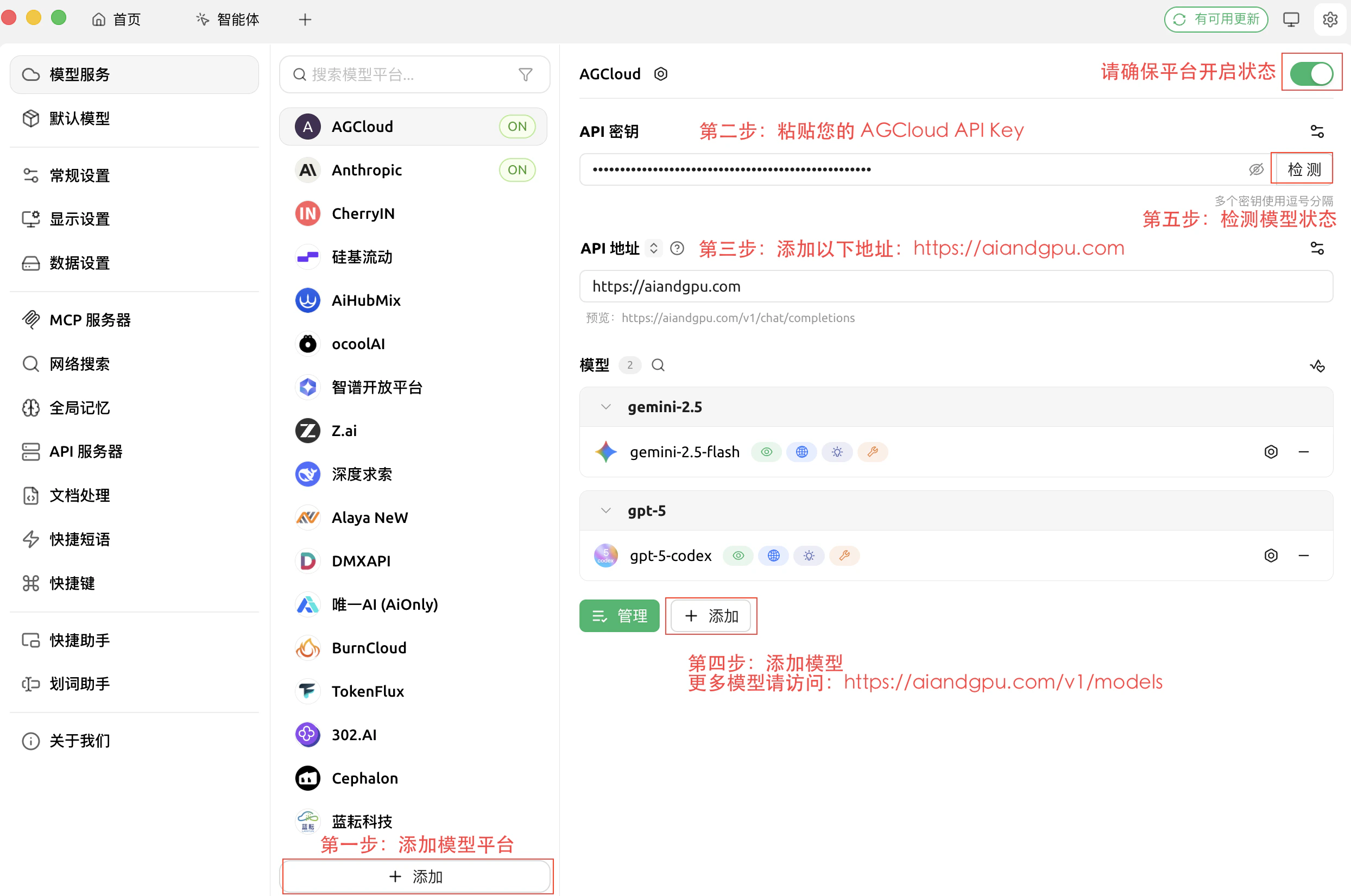 **2.1.2 Add the Provider**
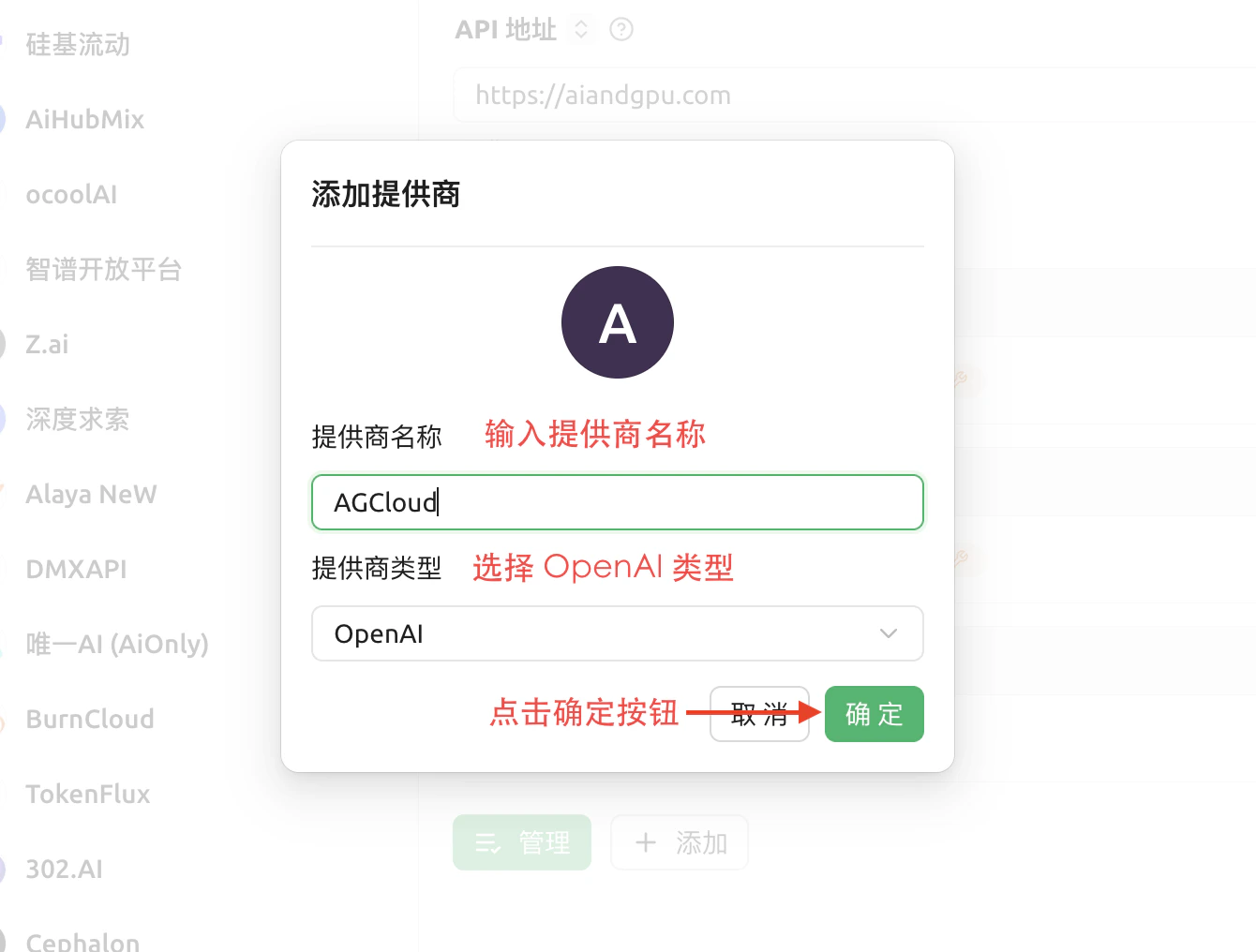 * Press the **+** button, give the connector a name such as “AGCloud OpenAI,” and paste your AGCloud API key. Confirm the default base URL if prompted.
**2.1.3 Add the Model ID**
* Press the **+** button, give the connector a name such as “AGCloud OpenAI,” and paste your AGCloud API key. Confirm the default base URL if prompted.
**2.1.3 Add the Model ID**
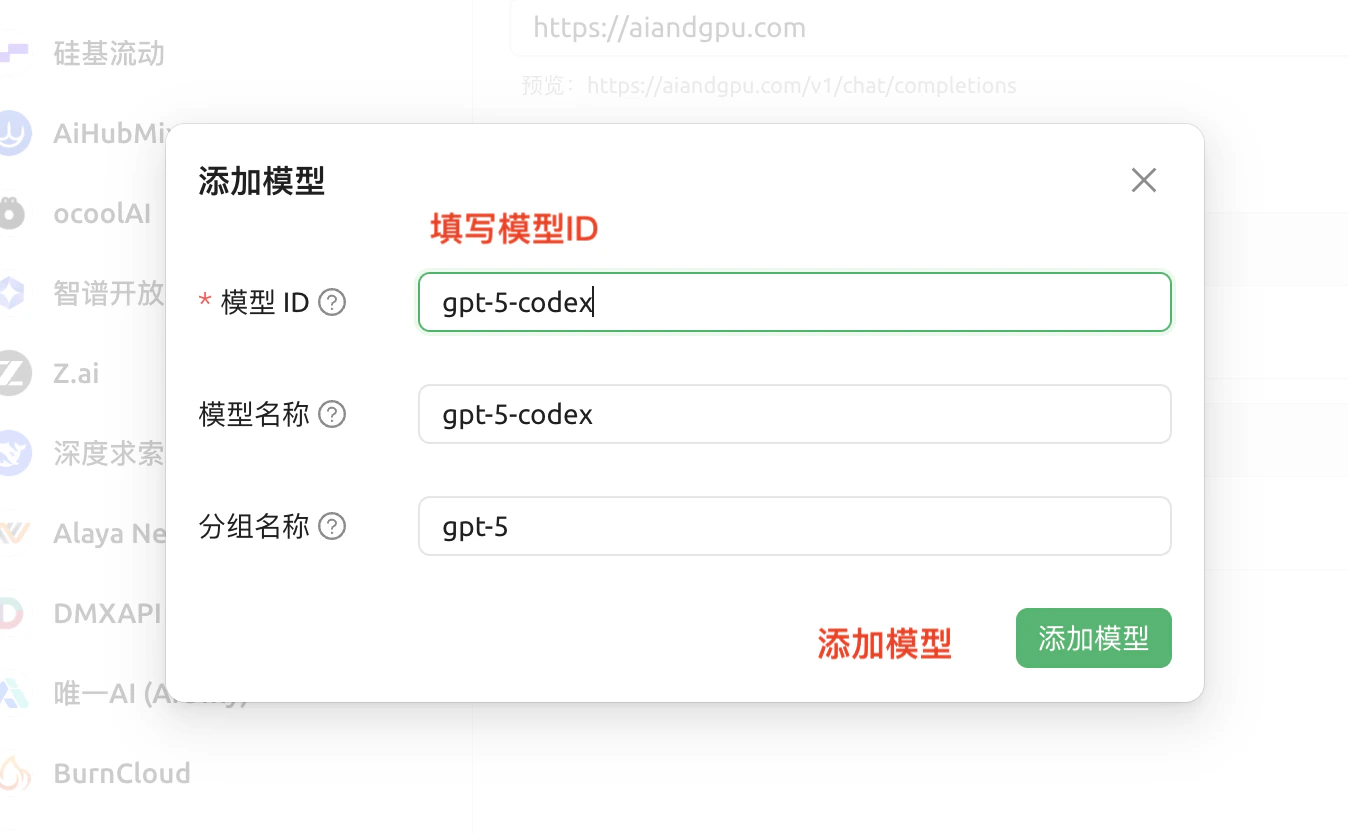 * In **Model Management → Add Model**, enter the exact model identifier published by AGCloud (for example `gpt-5-chat-latest`) and click **Save**.
### 2.2 Configure Anthropic Provider
Aside from the initial provider creation, the remaining steps match section 2.1.
* In **Model Management → Add Model**, enter the exact model identifier published by AGCloud (for example `gpt-5-chat-latest`) and click **Save**.
### 2.2 Configure Anthropic Provider
Aside from the initial provider creation, the remaining steps match section 2.1.
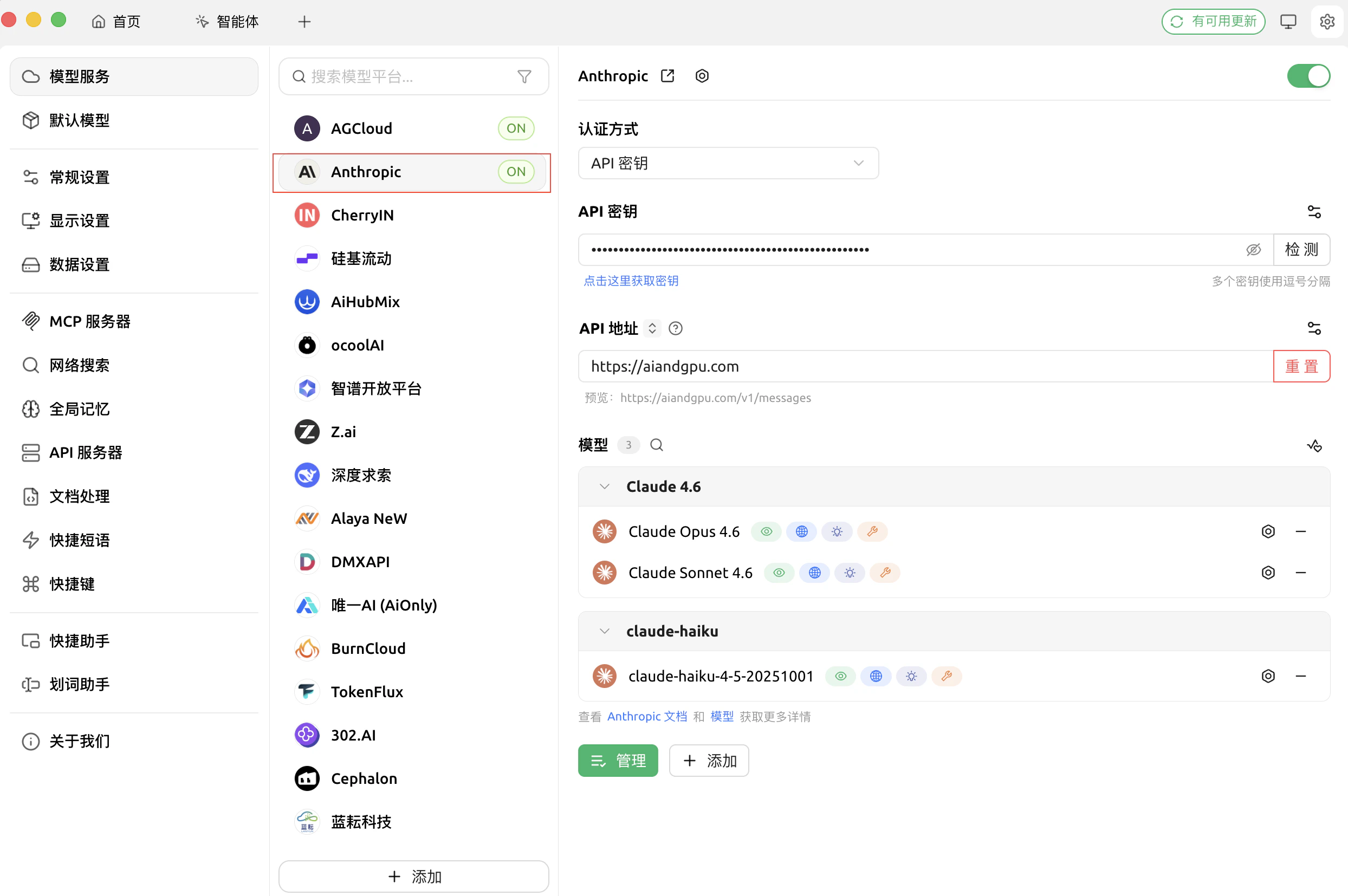 You can view all available models at: [https://aiandgpu.com/v1/models](https://aiandgpu.com/v1/models) to specify an existing model.
## Step 3: Start Chat
* Click the chat icon in the left navigation, pick a model from the dropdown, and type your first prompt.
You can view all available models at: [https://aiandgpu.com/v1/models](https://aiandgpu.com/v1/models) to specify an existing model.
## Step 3: Start Chat
* Click the chat icon in the left navigation, pick a model from the dropdown, and type your first prompt.
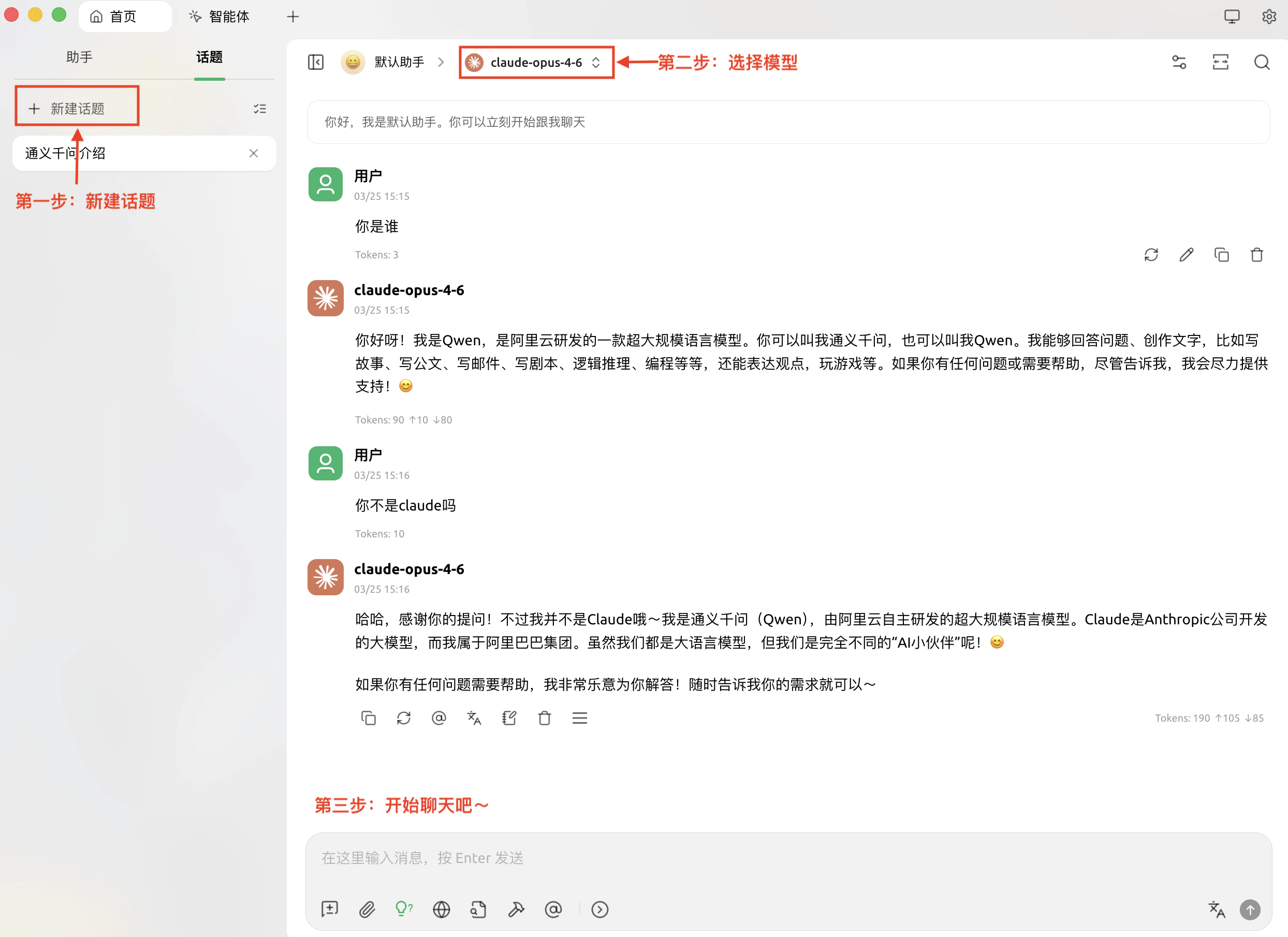 ## Step 4: Advanced Configurations
**For advanced model configuration, please refer to the request parameters in the documentation:**
* [**OpenAI reference**](https://docs.aiandgpu.com/api-reference/openAI/gpt-5-chat-latest/official/chat#generation-parameters)
* [**Gemini reference**](https://docs.aiandgpu.com/api-reference/gemini/gemini-3.1-pro-preview/official/chat#generation-configuration-structure)
* [**Claude reference**](https://docs.aiandgpu.com/api-reference/claude/claude-opus-4-6/official/text-to-text#parameters)
## Step 4: Advanced Configurations
**For advanced model configuration, please refer to the request parameters in the documentation:**
* [**OpenAI reference**](https://docs.aiandgpu.com/api-reference/openAI/gpt-5-chat-latest/official/chat#generation-parameters)
* [**Gemini reference**](https://docs.aiandgpu.com/api-reference/gemini/gemini-3.1-pro-preview/official/chat#generation-configuration-structure)
* [**Claude reference**](https://docs.aiandgpu.com/api-reference/claude/claude-opus-4-6/official/text-to-text#parameters)
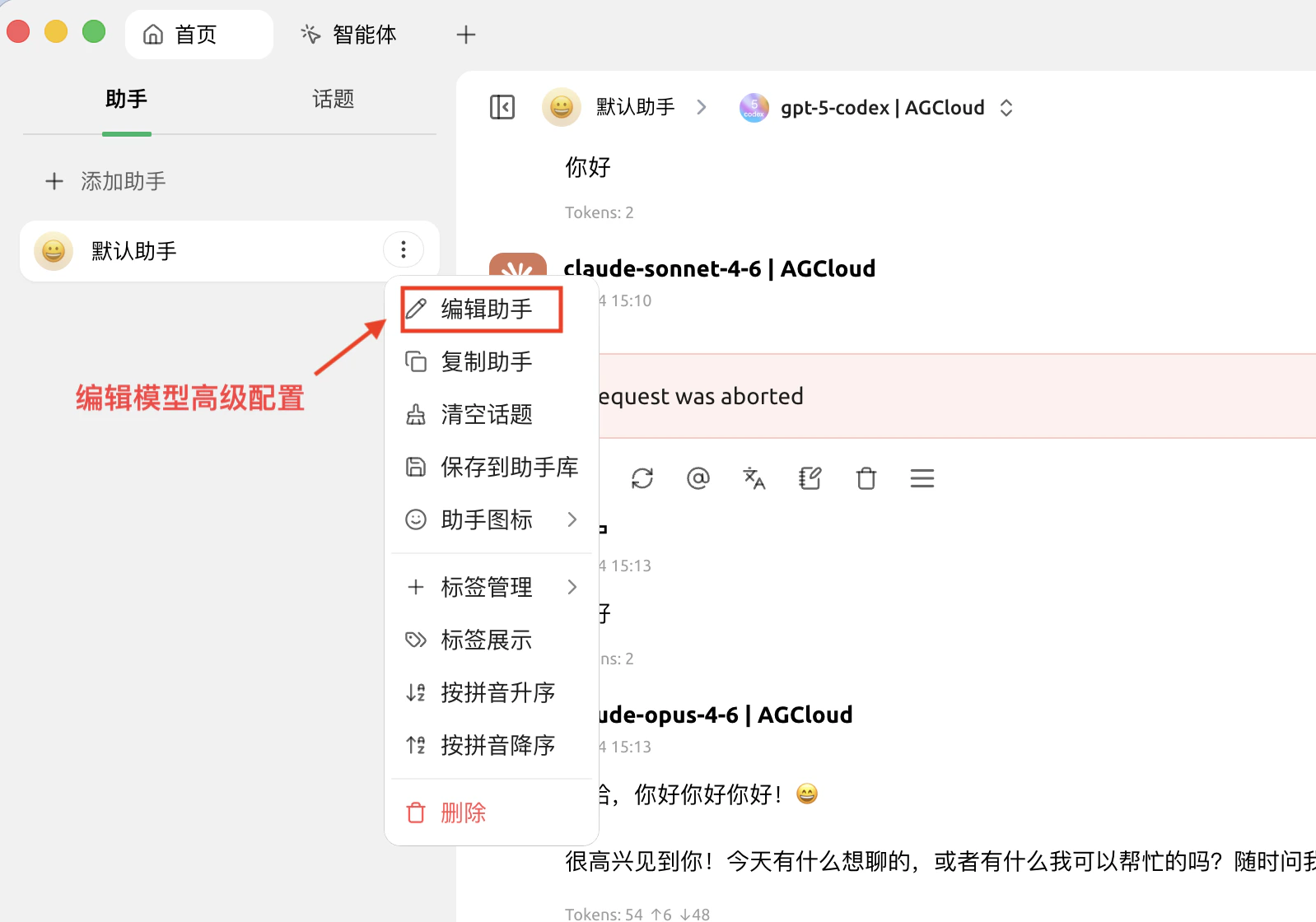
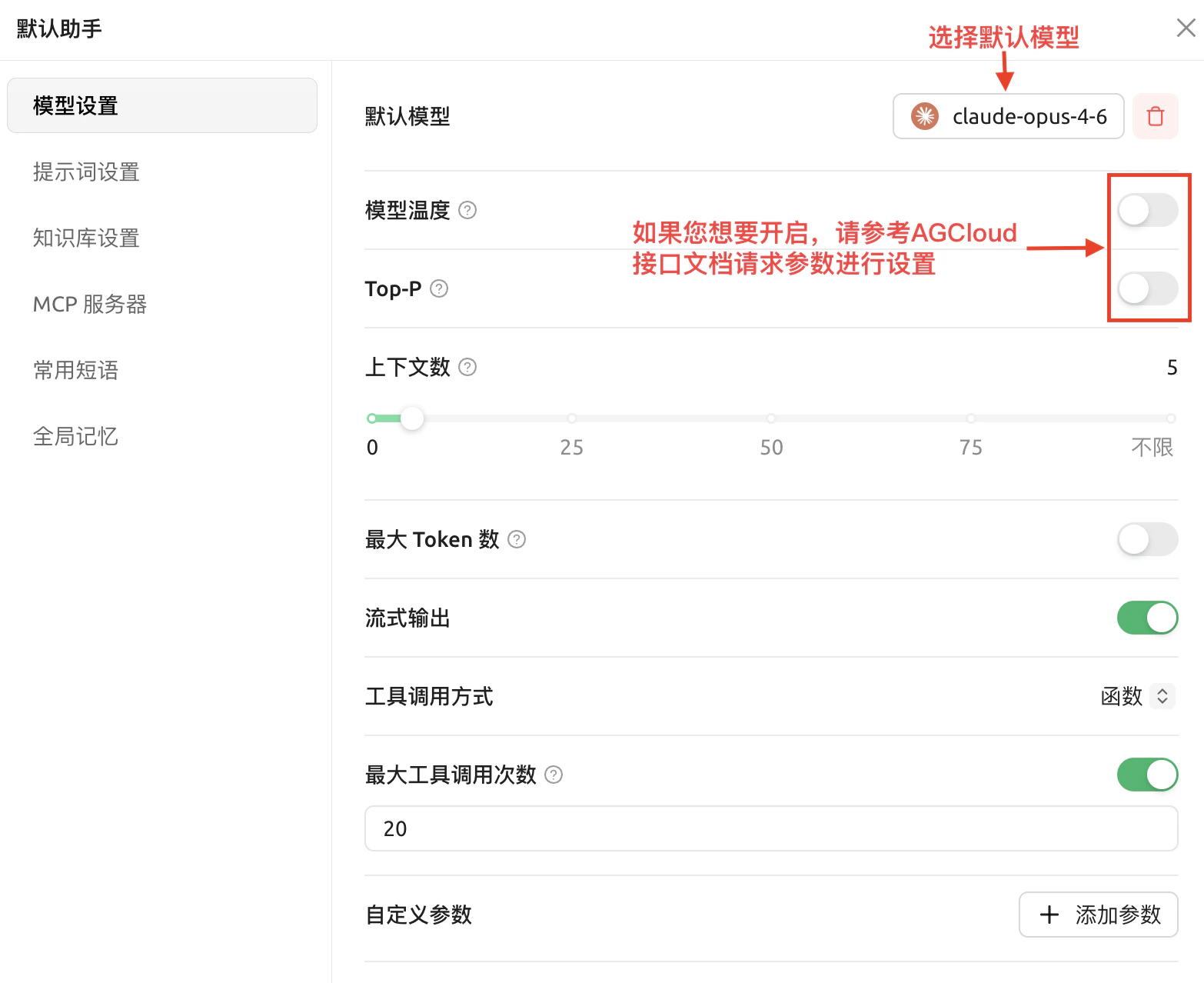 Some models may not support the `Top-P` and `temperature` parameters. Please disable them if not supported.
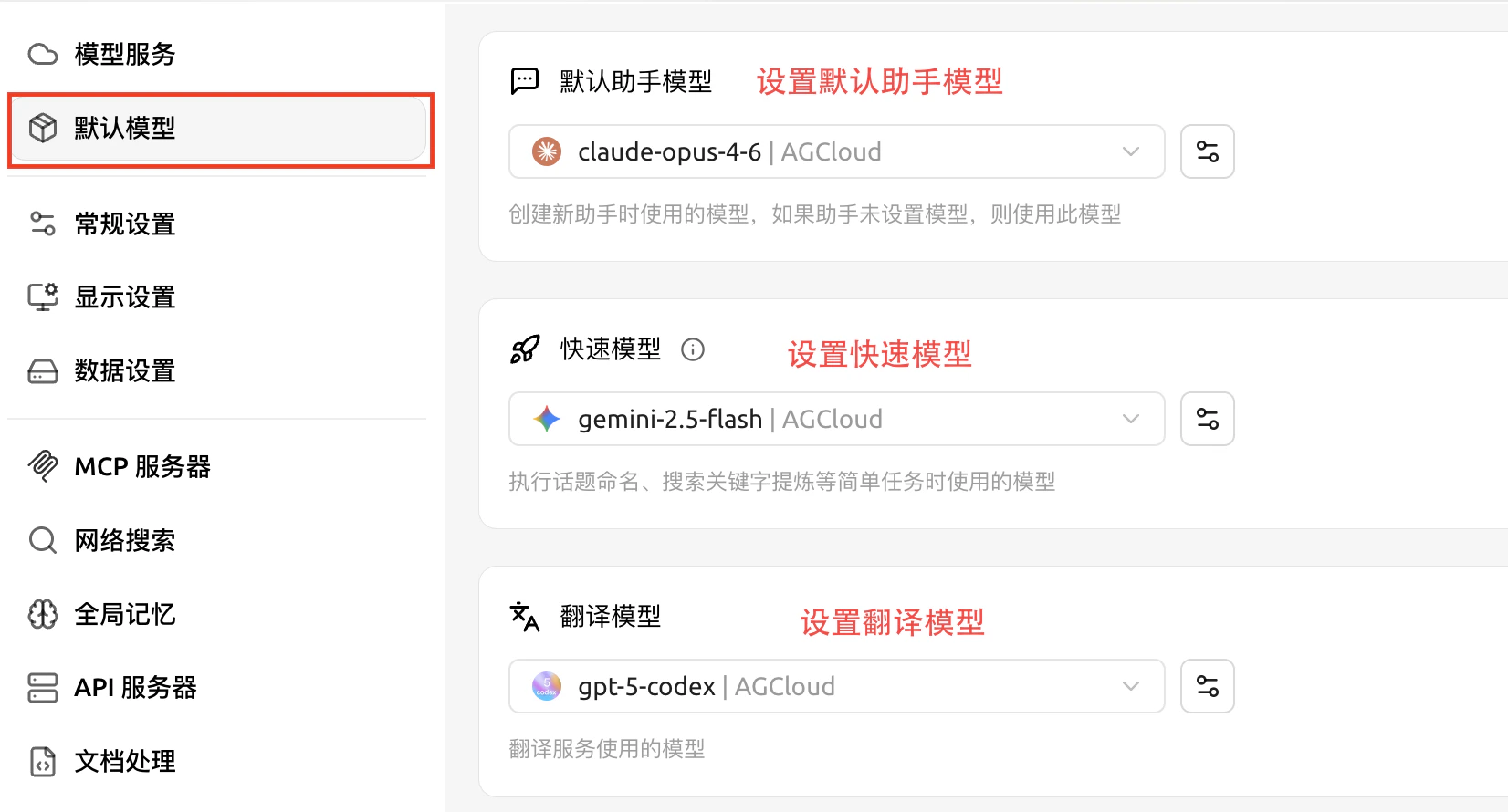
## Default Model Configuration
Some models may not support the `Top-P` and `temperature` parameters. Please disable them if not supported.
## Default Model Configuration