> ## Documentation Index
> Fetch the complete documentation index at: https://docs.aiandgpu.com/llms.txt
> Use this file to discover all available pages before exploring further.
# Chatbox AI
> Chatbox AI, Your Ultimate AI Copilot on any device.
## What is Chatbox AI
Chatbox AI is a cross-platform desktop client that connects your AGCloud account and personal API keys to a unified interface. Conversations, history, and generated assets live on your device, while quick switches between GPT, Claude, Gemini, and other providers keep your workflow fluid.
## Features
Upload PDFs, slides, screenshots, or snippets and Chatbox extracts the context to answer follow-up questions instantly.
Generate runnable snippets, review diffs, and preview UI ideas without leaving your workspace.
Trigger live search when you need up-to-date facts or references and keep citations collected in one place.
Turn raw tables or prompts into clean charts so stakeholders grasp trends at a glance.
Produce illustrations, UI mockups, and marketing assets using built-in image generation models.
Render equations and formatted documents inline to simplify collaboration with researchers and engineers.
## Step 1: Installation
* Download the latest desktop release for macOS, Windows, or Linux from [https://chatboxai.app](https://chatboxai.app).
* Install the application following your OS prompt, then launch Chatbox AI and sign in with your AGCloud credentials.
* (Optional) Open **Settings → General** to set the default download folder for transcripts and assets before you start chatting.
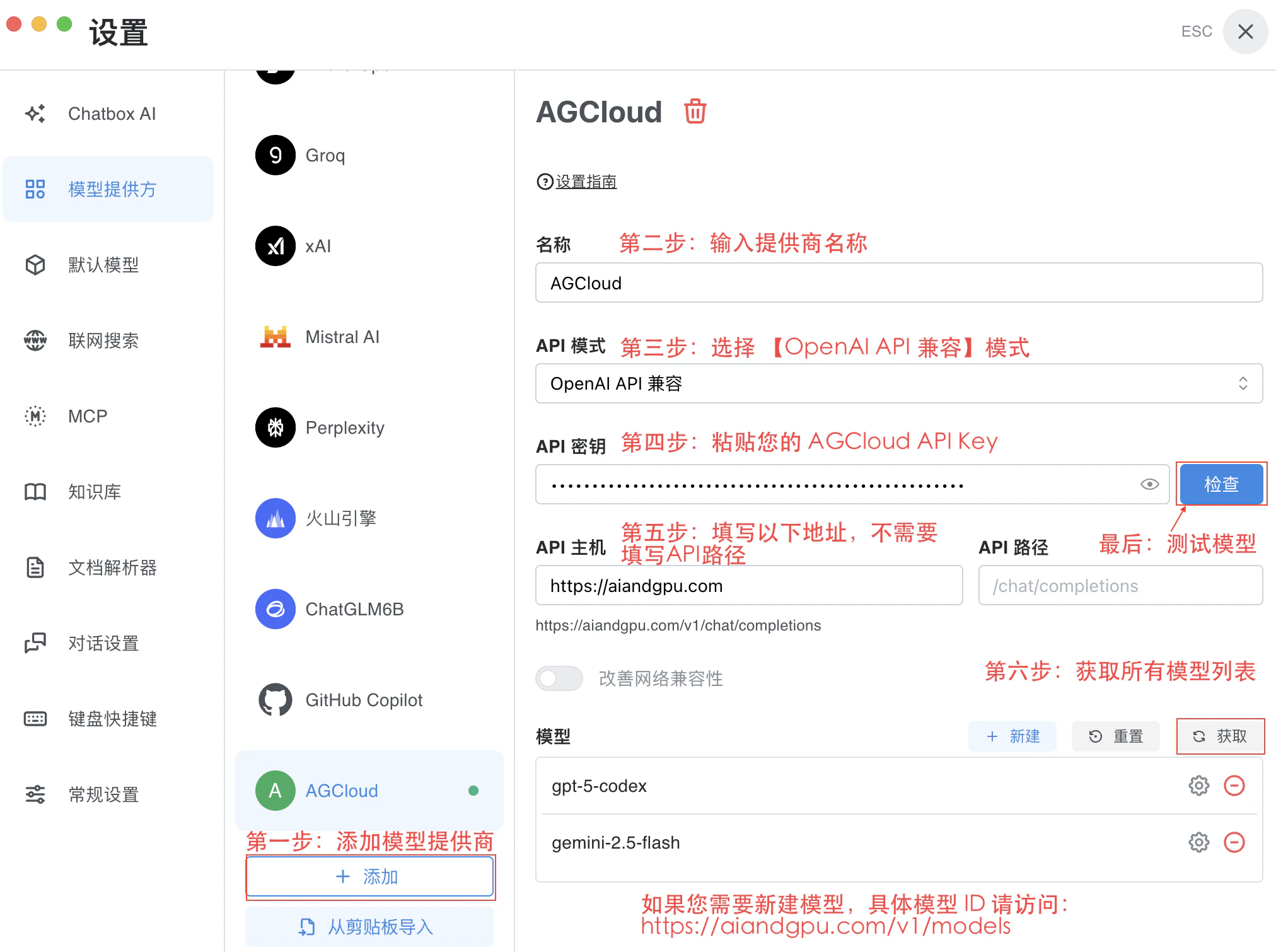
## Step 2: Add AGCloud Configuration
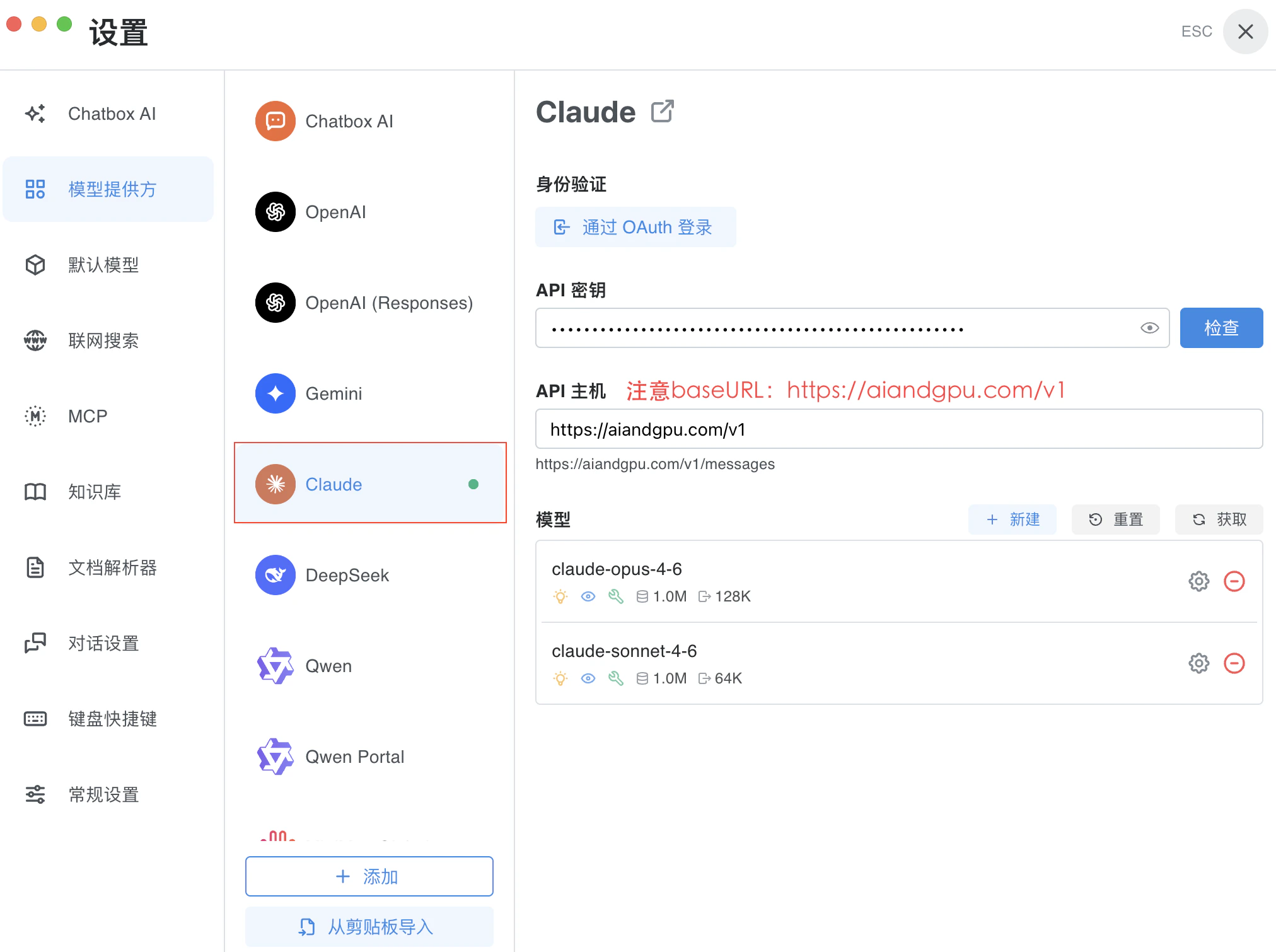
Some Claude models are not fully compatible with the OpenAI-format endpoints, which can cause slow or stalled responses. When connecting to Claude, switch to the dedicated `Anthropic` provider so the correct API schema is used.
**2.1 Configure OpenAI and Google Providers**
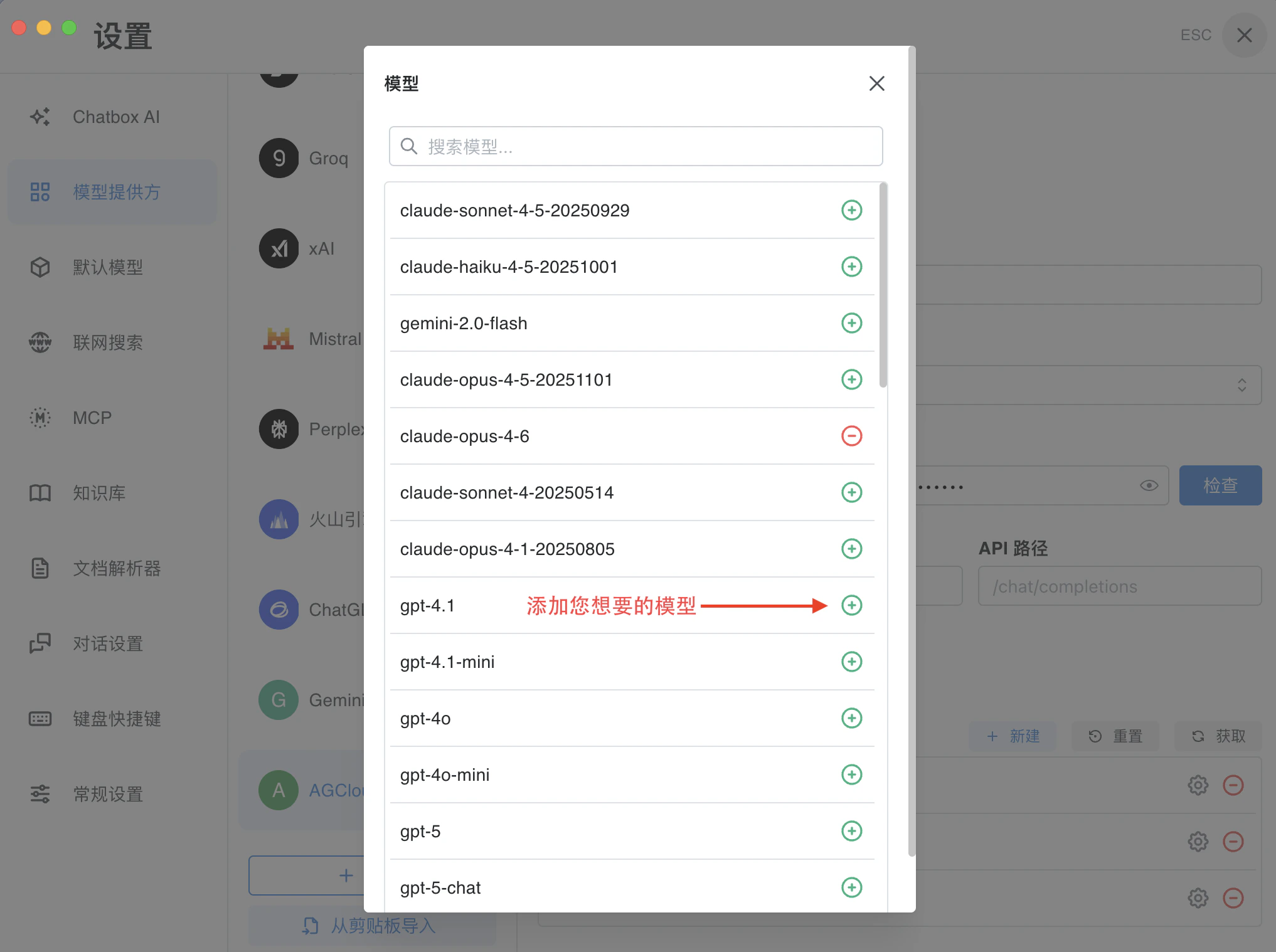
 **Add Models**
 **2.2 Configure Anthropic Provider**
* Repeat the first bullet from 2.1 to open **Settings → Providers** and choose `Anthropic`.
* Replace the **API Host** with `https://aiandgpu.com/v1` so requests are routed through AGCloud.
**2.2 Configure Anthropic Provider**
* Repeat the first bullet from 2.1 to open **Settings → Providers** and choose `Anthropic`.
* Replace the **API Host** with `https://aiandgpu.com/v1` so requests are routed through AGCloud.
 ## Step 3: Start Chat
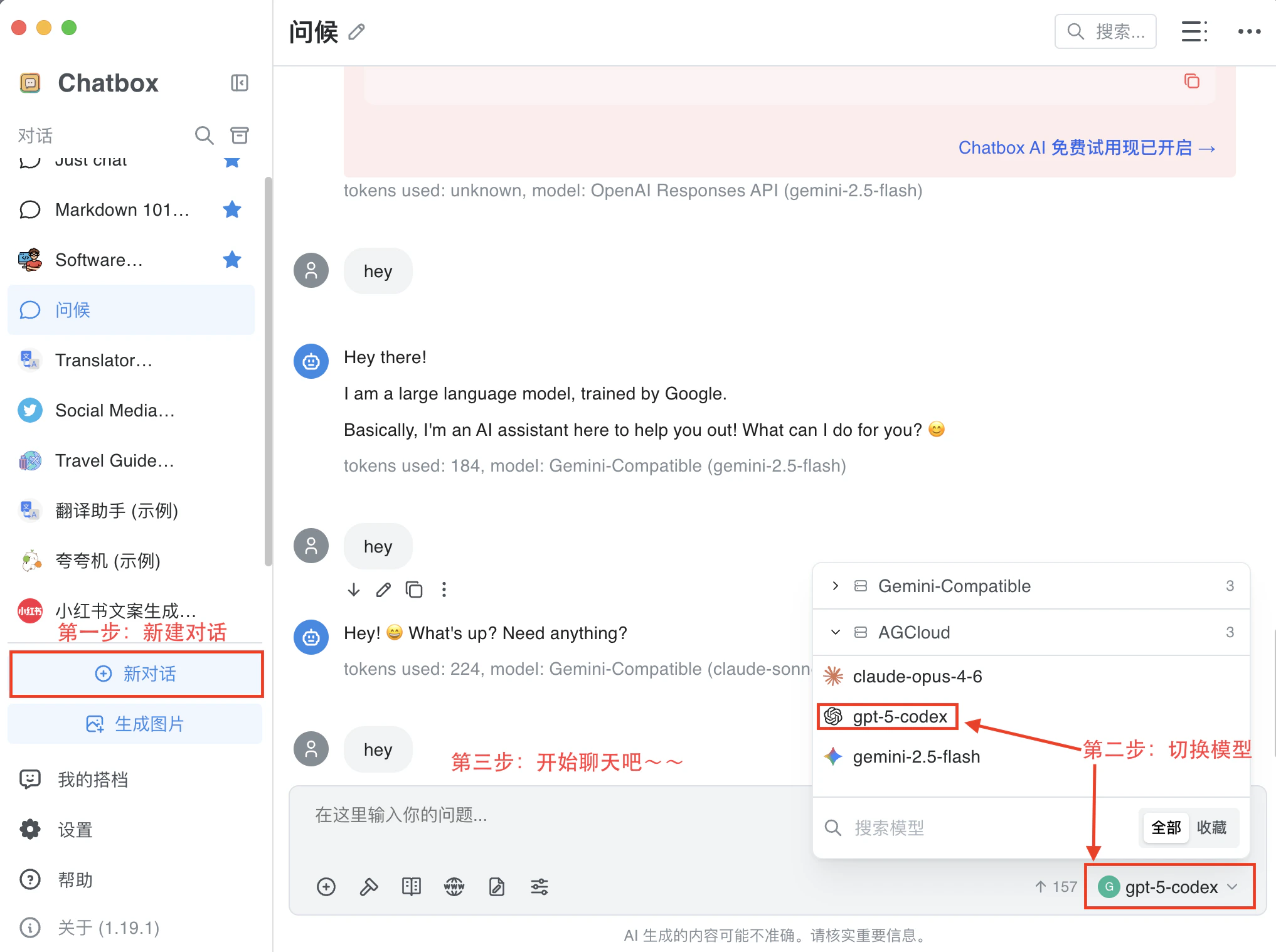
* Choose a model from the top selector or the command palette shortcut `⌘/Ctrl + K`.
* Drag documents or images into the message box to enable context-aware answers.
* Use the sidebar history to pin important conversations so they sync across devices.
## Step 3: Start Chat
* Choose a model from the top selector or the command palette shortcut `⌘/Ctrl + K`.
* Drag documents or images into the message box to enable context-aware answers.
* Use the sidebar history to pin important conversations so they sync across devices.
 ## Step 4: Manage Data
* Export transcripts via the **⋯** menu in each conversation; choose JSON or Markdown for downstream tools.
* Toggle **Local Cache Only** in **Settings → Privacy** if you need to keep all assets on-device.
* Set up scheduled backups by linking a folder to cloud storage (iCloud, OneDrive, etc.) so your prompts and attachments remain safe.
## Step 4: Manage Data
* Export transcripts via the **⋯** menu in each conversation; choose JSON or Markdown for downstream tools.
* Toggle **Local Cache Only** in **Settings → Privacy** if you need to keep all assets on-device.
* Set up scheduled backups by linking a folder to cloud storage (iCloud, OneDrive, etc.) so your prompts and attachments remain safe.